
How to block Reels on Instagram on iPhone
To block Reels on Instagram, you need to take Reels out of the app you open, because neither Instagram nor iPhone has a setting that blocks only Reels. Screen Time works on whole apps, so blocking Instagram there also blocks your messages. To block Reels and keep your DMs, use a separate app for messages (such as Unscroll) and let Screen Time lock the Instagram app itself.
Block Instagram Reels on iPhone and keep your messages
- Download Unscroll from the App Store and sign in on instagram.com inside the app.
- Leave Hide Reels, Hide Explore and Hide the feed switched on in the What to hide panel.
- Connect Screen Time when Unscroll asks, so the Instagram app gets locked.
- Read and answer DMs in Unscroll. Unlock the Instagram app for a few minutes only when you need it.
What Screen Time can and can't block
Screen Time, under Settings on your iPhone, can set an App Limit on Instagram or block it during Downtime. Both apply to the whole app. There is no option to block one tab, and adding instagram.com/reels to the website blocklist does nothing to the app.
App Limits are also easy to skip. When the limit hits, you get an Ignore Limit button, and one more tap gives you fifteen more minutes. After a week, most people tap it without thinking.
Block Reels without losing your DMs
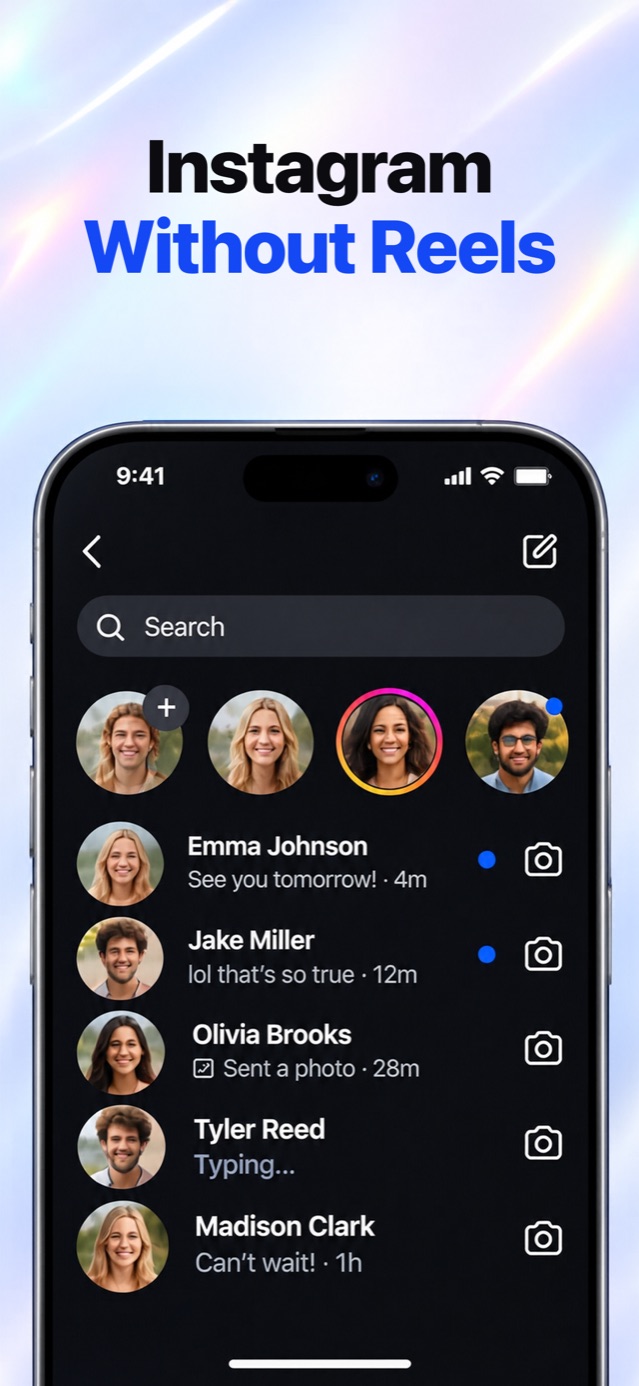
The trick is to split Instagram in two: messages in one place, everything else locked. Unscroll shows your inbox, chats and stories with Reels hidden. Then, with your permission, it uses Apple's Screen Time to lock the Instagram app so you can't drift back into it.
Your Screen Time data stays on your iPhone. Unscroll doesn't send it anywhere.
When you really need the Instagram app
Some things only work in the real app, like posting a story or making a video call. In Unscroll you tap More, pick why you want in (post a story, call someone and so on) and choose 5 to 10 minutes. When the time is up, Instagram locks again. You get three unlocks a day, which resets at midnight.
Having to name a reason sounds small, but it's often enough to make you notice you were only opening Instagram out of boredom.
Other iPhone tricks that help
Move the Instagram icon off your home screen and into the App Library. Turn off Instagram's notifications except for messages. Turn on Grayscale under Accessibility, Display & Text Size, Color Filters if colourful videos are what keep you watching. These won't block Reels, but they cut down how often you end up there.
If you share an Apple ID with family or use Screen Time with a passcode, set the passcode to something you don't know by heart, or ask someone else to set it. A limit you can turn off in two seconds doesn't hold for long.
Common questions
Does blocking Instagram in Screen Time stop message notifications?
Yes. When an app is blocked through Screen Time, its notifications are held back too. Unscroll can send its own alerts for new DMs while Instagram stays locked.
Can I block Reels on iPad too?
Yes. Unscroll runs on iPad as well as iPhone, on iPadOS 17 or later.